
Create a team and a drive
Sign in, name your team, and make the drives that hold your files.
Create your team
Sign in
Go to byterover.ai/sign-in and select Continue with GitHub, Continue with Google, or Continue with email instead. If you choose email, select Email me a sign-in link. The link works once and expires after 15 minutes.
These same buttons create your account if you don't have one yet. There's no password.
Type your name
On What should we call you?, type your name and select Continue. This is the name your teammates see.
Name your team
On Name your team, fill in both fields and select Create team.
| Field | What to type |
|---|---|
| Team name | The name your team sees. Up to 80 characters. |
| Address | Where the team lives in the address bar: byterover.ai/your-team. Use 3 to 48 lowercase letters, numbers and hyphens. |
Team owners and admins can change either one later under Team > Settings. If you change the address, links to the old address stop working.
You start with My Drive, your own drive that only you can open. Upload files to it right away. To work on files with others, create a shared drive (below).
You can be in up to 10 teams. To make another, open the team menu at the top of the sidebar and select Create a team. Each team has its own My Drive, shared drives and balance, and files don't move between teams. The same menu switches between your teams.
If someone invited you, you'll see You've been invited before the team form. Select Join, then Join as your address, to enter their team. You don't need a team of your own, and if you have one, you stay in it when you join.
To bring other people in, see Members and invitations.
Create a drive
Only team owners and admins can create drives. Access is set per drive, so make one drive for each group of files that has its own set of readers. For help deciding, see how to split your files into drives.
Start a new drive
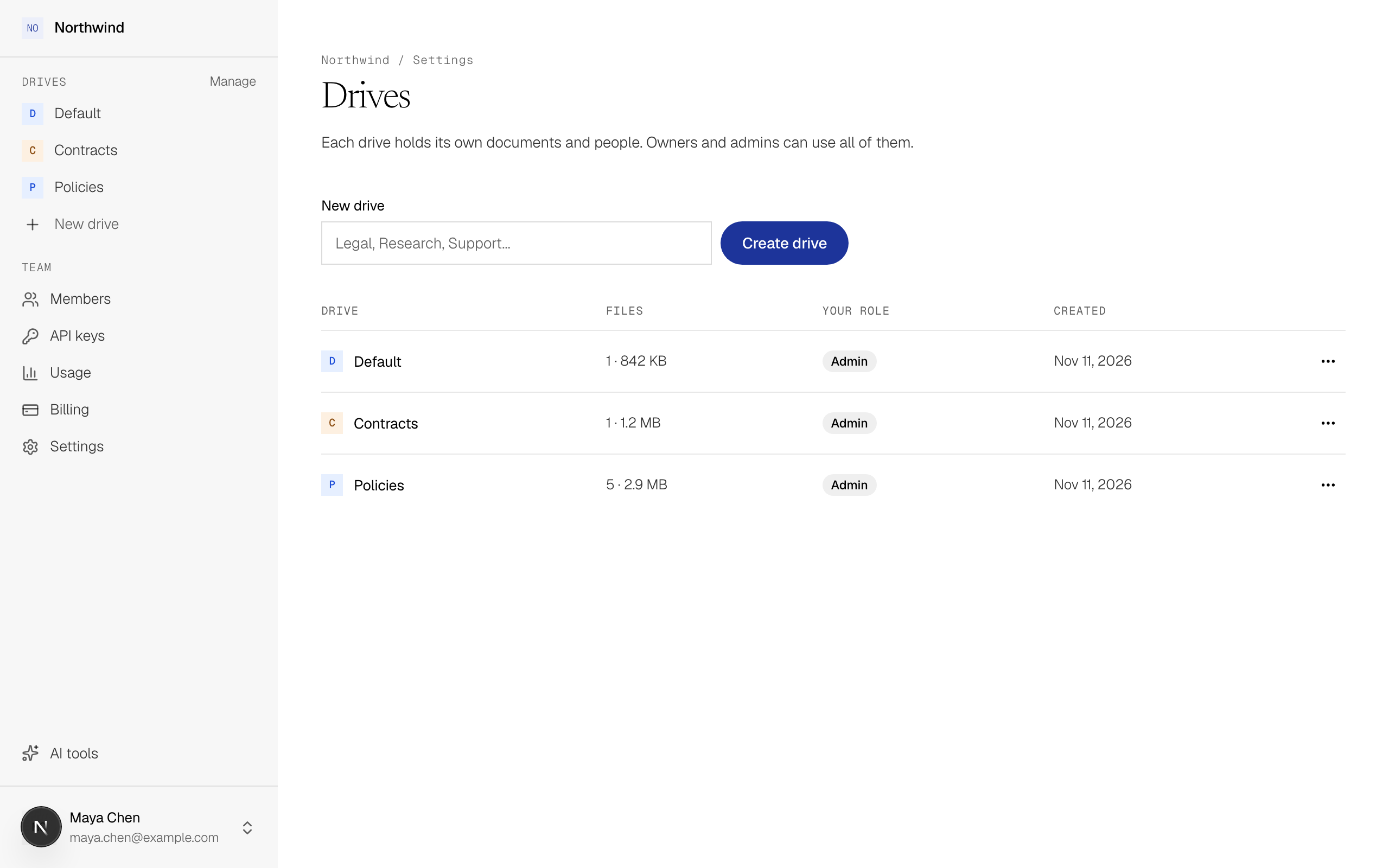
In the sidebar, under Drives, select New drive. This opens the Drives page of the team settings.
Name the drive
Type a name in New drive, such as "Legal" or "Support", and select Create drive.
ByteRover opens the new drive's Access tab, so you can give people access right away. The drive also appears in the sidebar. Team owners and admins can use it immediately; members see it once you give them access.
Rename or delete a drive
On the same page, open the drive's menu.
- Rename changes the name for everyone who has access. Team owners and admins can rename it.
- Delete drive is for team owners and admins only. It asks you to type the drive's name first. Deleting a drive also deletes its files and its access list, and removes the drive from every API key that could reach it. You can't undo this.
A team always keeps at least one drive, so you can't delete the last one.