
Share a drive
Give a teammate access to the files in a shared drive, with the role that fits their work.
Before you start
- You need to be an Admin of the drive, or an owner or admin of the team.
- Your teammate has to be a member of the team already. If they aren't, invite them first.
- You share a shared drive. Your My Drive can't be shared: to share a file or a whole folder from it, open its menu and choose Copy to a shared drive or Move to a shared drive.
Team owners and admins can use every drive, so you don't need to add them.
Add a person to a drive
Open the Access tab
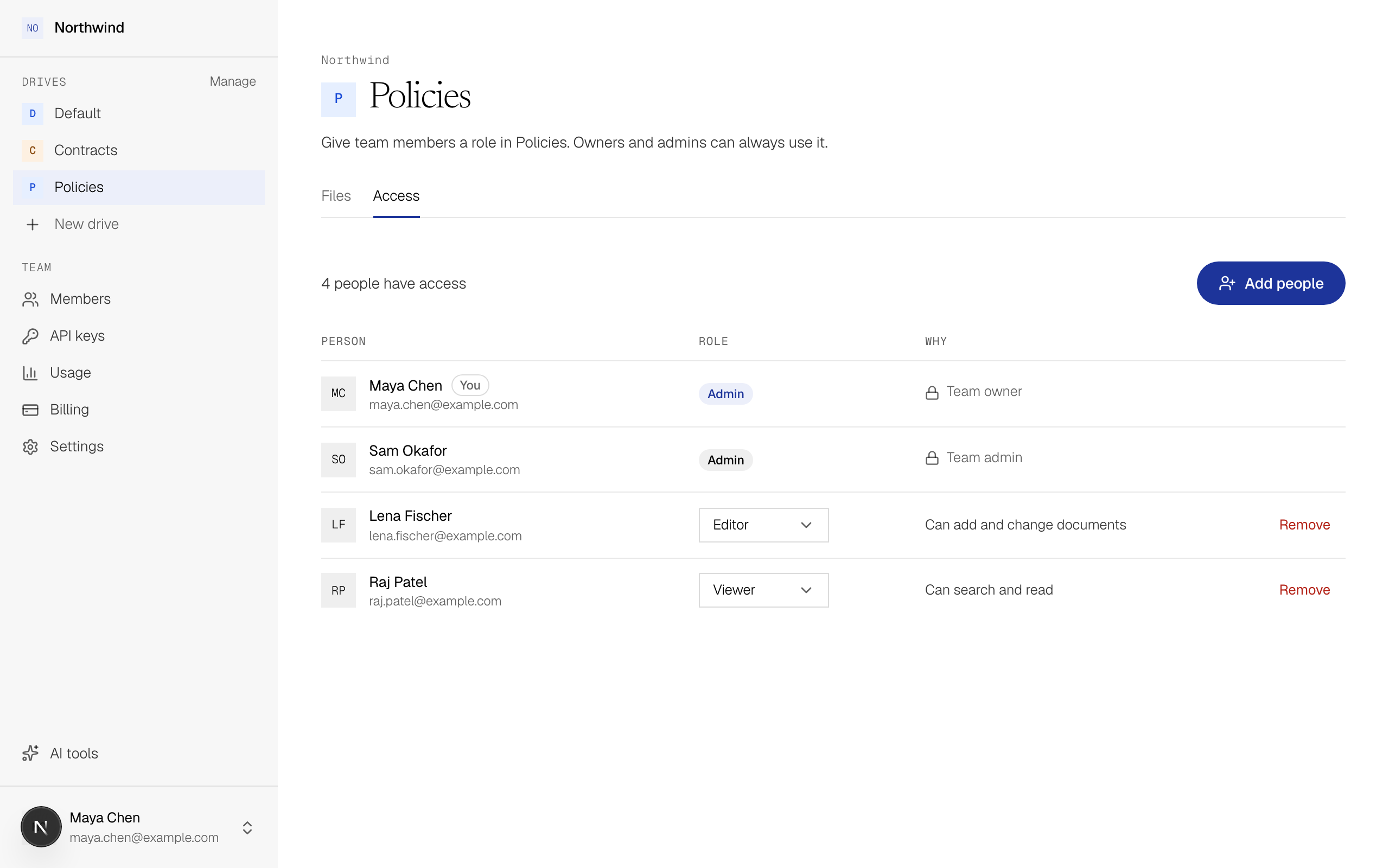
Open the drive and select Access. The list shows everyone who has access, their role, and why they have it.
Choose the person and the role
Select Add people, choose a member under Person and a Drive role, then select Add.
| Drive role | The person can |
|---|---|
| Viewer | Search and read. |
| Editor | Search and read, and add and change files. |
| Admin | Everything an Editor can, plus manage who has access. |
Give each person the lowest role that covers their work. Someone who only asks questions should be a Viewer. The full table is in Roles.
Check that it worked
The person now appears in the list on the Access tab, and the drive shows up in their sidebar the next time they open ByteRover.
Their agents get the same access, because an agent acts on behalf of its person. See What an agent can read and write.
Change a role or remove a person
On the Access tab, change the role in the person's row, or select Remove. Someone you remove stays in the team but can no longer use this drive.
Team owners and admins can't be removed from a drive here, because their access comes from their team role. To change it, change their role under Team > Members.