
Upload files
Add files or a whole folder to a drive, and know when you can search them.
Before you start
- You need the Editor or Admin role in the drive. A Viewer can search and read but can't add files.
- Each file must be a type ByteRover reads, and no larger than 1 GB. See file types.
Upload
Open the drive
Select the drive in the sidebar. If the files belong in a folder, open that folder first.
Add the files
Select Upload files and choose one or more files, or drop files or a folder onto the page. A dropped folder keeps its subfolders.
Follow the status
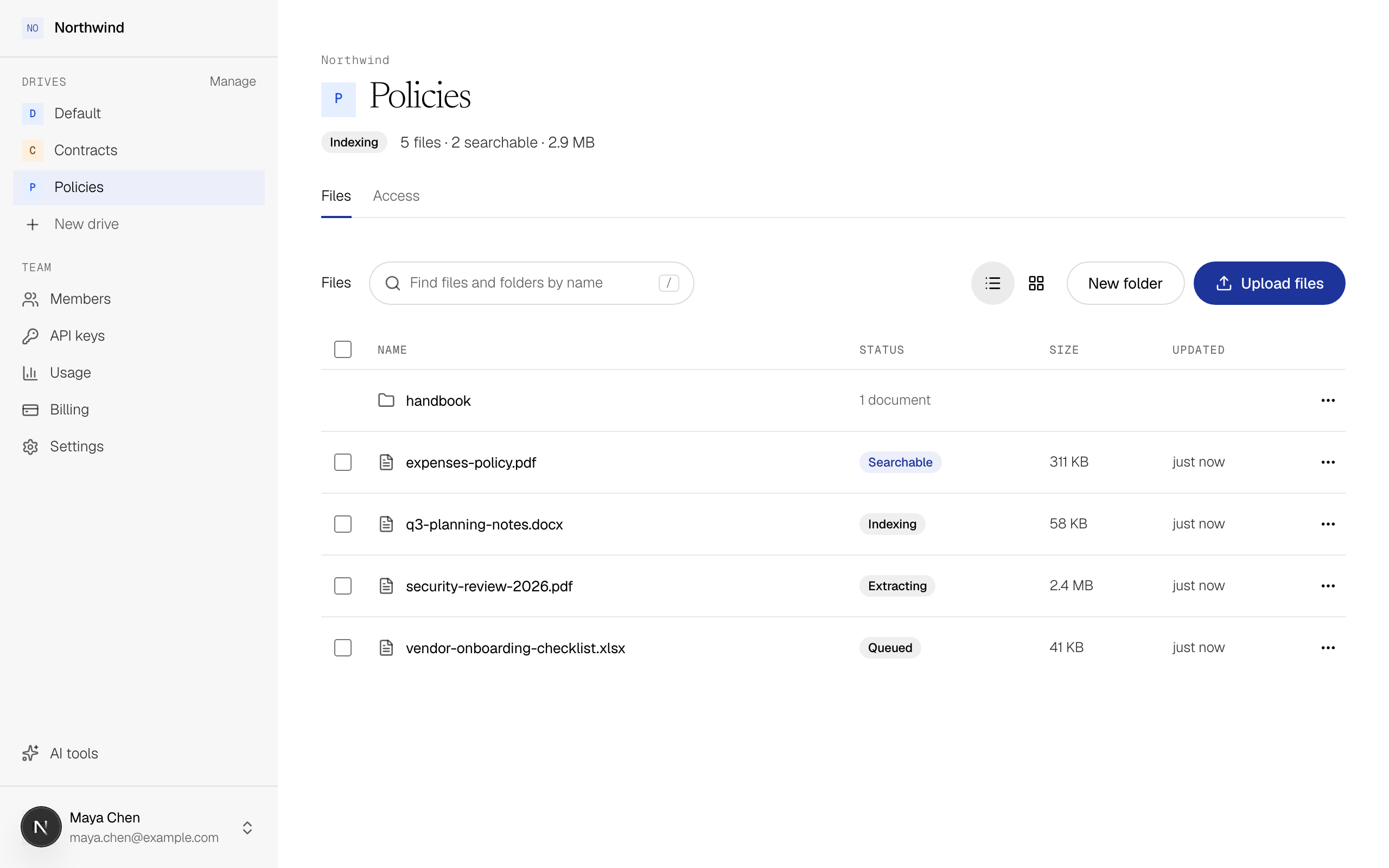
Each upload moves through Preparing, Uploading and Finishing to Uploaded. The file's Status column then shows ByteRover reading it: Queued, Extracting, Indexing and Saving, then Searchable. If ByteRover can't read the file, the status is Not searchable.
Check that it worked
The line above the file list shows how many files the drive holds and how many of them are searchable. Each file's status changes on its own as ByteRover reads it, without reloading the page. The drive's overall state is one of these:
| The drive says | Meaning |
|---|---|
| Empty | There are no files in the drive. |
| Indexing | At least one file is still being read. You can already search the files marked Searchable. |
| Searchable | Every file is searchable. |
| Not all searchable | At least one file is Not searchable, and nothing is still being read. |
While files are being read, the line also says how many, such as 2 being indexed. When ByteRover couldn't read some files, it says 1 not searchable, even while others are still being read. Select a count to list those files from every folder.
Replace a file
Upload the new version to the same folder with the same name. ByteRover adds it as a new revision, and searches read that revision from then on. Earlier revisions are kept under Version history when you open the file.
Organize
| To | Do this |
|---|---|
| Make a folder | Select New folder. |
| Move or rename a file or folder | Open its menu and select Move or Rename. |
| Add a tag | Open the file's menu and select Edit tags. A tag is a plain label, such as legal or 2026. You can limit a search by tag. |
| Change several files at once | Tick the files, then use Move, Add tag or Delete in the bar above the list. |
| Find a file by name | Type in Find files and folders by name. This box only matches names; to search what's inside your files, ask a question. |
| Delete a file | Open its menu and select Delete file. The original file is deleted and it's no longer searchable. You can't undo this. |
Look inside a file
Select a file to open it. You see a preview of the file, with its Type, Size and the dates it was added and updated.
| Part | What it shows |
|---|---|
| Version history | Every revision, with when it was uploaded and its size. Select one to show it, and download it with Download. |
| Tags | The file's tags. Select Edit tags to add or remove them. |