
Members and invitations
Invite people to your team, give them drives, and remove them when they leave.
A member is a person in your team. Members only see the drives they've been given, so an invitation on its own doesn't show anyone your files.
Members are free. Your team pays for searches and storage, not for people.
Invite people
Team owners and admins can invite people.
Open the team's members
In the sidebar, under Team, select Members.
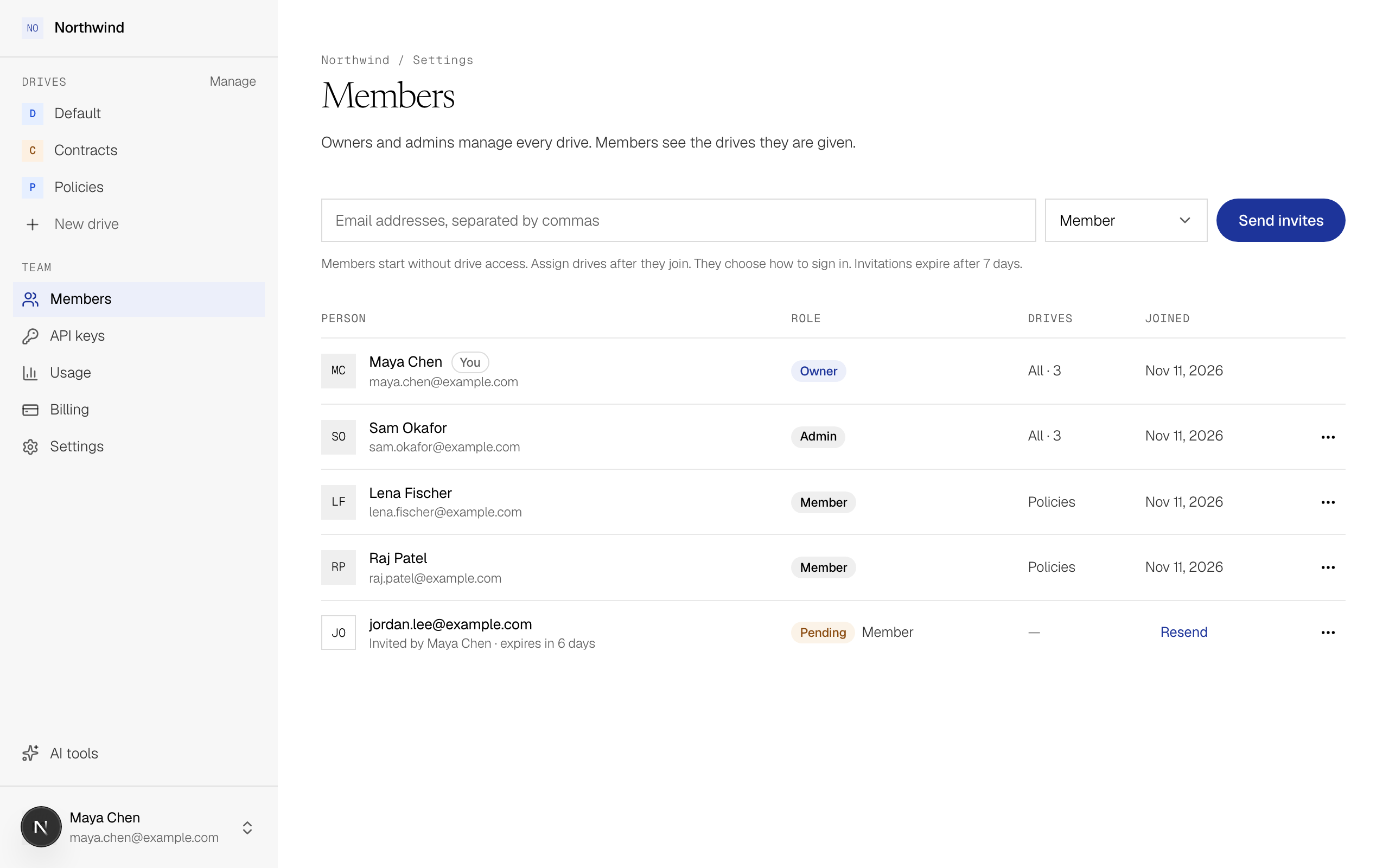
Type the email addresses
Enter one or more addresses, separated by commas, and choose a team role. Member is right for most people; see Roles.
Send the invitations
Select Send invites. Each person gets an email with a link that works for 7 days, and only for the account with that email address.
People can sign in with GitHub, Google or an email link, whichever they prefer. They don't need a password.
A person can be in up to 10 teams. If the person you invite is already in another team, they stay in it when they join yours, and switch between teams from the team menu. Someone already in 10 teams has to leave one before joining.
Give drives to a new member
A new Member starts with no drives. Once they've joined, add them to each drive they need: open the drive, select Access, then Add people. See Share a drive.
A new Admin or Owner can use every drive right away.
Follow an invitation
Invitations you've sent appear in the list marked Pending.
| To | Do this |
|---|---|
| Send the email again | Select Resend. |
| Stop an invitation | Select Cancel invitation. The link stops working. |
| Invite someone again after 7 days | Send a new invitation. |
Change a role
Team owners and admins can change roles. Open the member's menu and select Make member, Make admin or Make owner. Only an owner can make someone else an owner or change an existing owner's role.
Remove a person
Open the member's menu and select Remove from team. When you do:
- The person loses access to every drive in the team.
- Any agents they connected lose access too, because an agent acts on behalf of its person.
- Any API keys they created stop working.
Files they uploaded stay in their drives.
Before you remove someone, check API keys for keys with their name in the By column, and create new keys for the programs that use them.
Leave a team
Open Settings under Team and select Leave team. You lose access to the team's drives at once, and the API keys you created there stop working.
The only owner of a team can't leave it. Make someone else an owner first, or delete the team. Deleting your account is refused for the same reason.